A Telegram inbox for creators: reply to every buyer, see everything that happened
Last verified November 8, 2026Why Telegram alone gets hard
Telegram’s chat list is sorted by time and knows nothing about sales. Once you sell in your DMs, you need to know who is waiting for an answer, who has an offer they haven’t paid, and who bought what, across every account you run. That’s the part of a CRM a creator actually needs, without the sales-team setup.
1. Pick a profile, or see them all
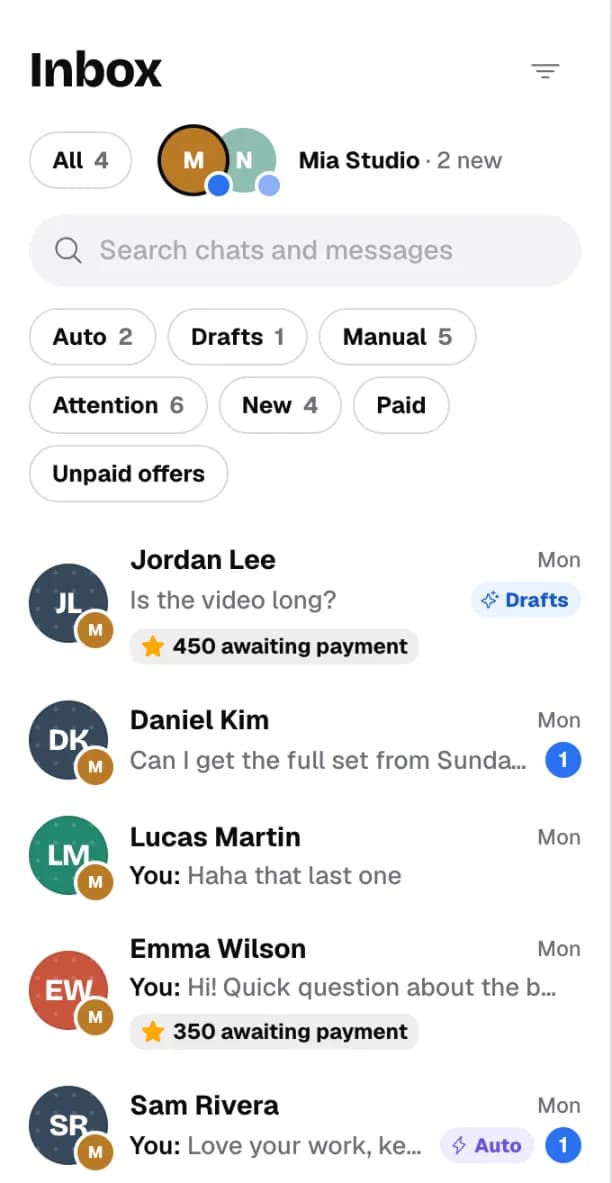
The inbox list shows chats from all your connected Telegram profiles, newest activity first. Each row shows the buyer, the last message and its time. The round avatars at the top are your profiles: tap one to see only its chats, tap All to see everything again.
2. Narrow the list with filter chips
- Attention: chats waiting for you, including ones the AI handed over.
- New: chats you haven’t opened in the app yet.
- Paid: buyers with a purchase. Unpaid offers: an offer was sent but not bought.
- Auto, Drafts, Manual: chats by who answers them.
3. Read the badges
A badge under a chat says what needs doing. Hover one for a short explanation.
| You see | It means |
|---|---|
| Needs your reply | The AI handed this chat to you. |
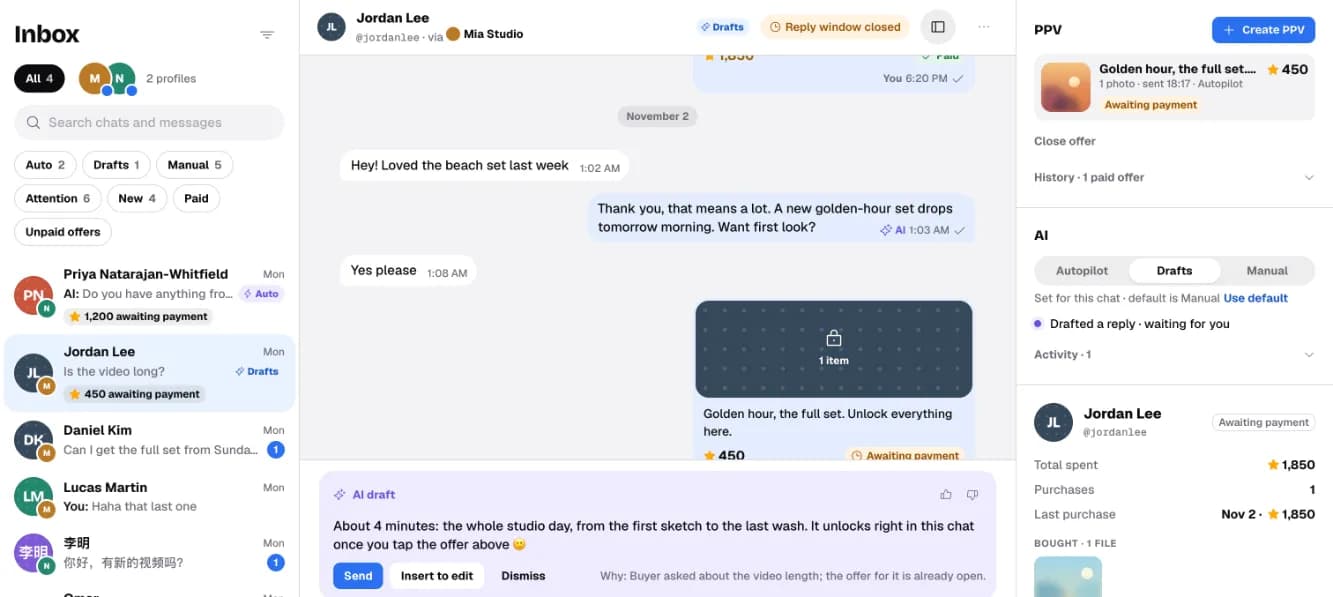
| ⭐ 450 awaiting payment | You sent an offer; the buyer hasn’t paid yet. |
| Closing soon | Telegram’s 24-hour reply window is about to close. |
| Reply window closed | No message from the buyer for over 24 hours. You can reply after they write again. |
| New buyer | Their first purchase was in the last 7 days. |
4. Open a chat and check the buyer
The conversation opens in the middle. The header shows who the buyer is and which profile you reply from. The panel on the right shows what they’ve spent in total, how many purchases they made, and the files they already own, so you don’t offer the same thing twice.
5. Pin, snooze or mark done
The ⋯ menu in the chat header lets you pin a chat, snooze it or mark it done. These change only the app, not Telegram. A new message brings a snoozed or done chat back.
The daily routine: pick a profile, use the chips, read the badges, open a chat and check the buyer. More detail in the guide: Inbox and profiles.
6. Check the Journal
The Journal (in the account menu) lists everything that happened, newest first: replies, offers and sales, with the time, who did it and the profile.
- Who separates You, the AI and the System. Pick AI and apply to see only what the AI did.
- Area narrows it to AI, Offers, Purchases or Data.
- Details on an entry shows the mode, the output and the checks the AI went through. Full prompts and secrets are never stored.
Your data controls
Below the list, AI data processing shows whether the AI may read your chats, and What is shared explains what it receives. You can turn it off at any time. Next to it, Delete workspace data lets you request deletion; requests are handled manually, and you’re contacted before anything is removed.
Messages from before you connected your bot aren’t imported: the first message in each chat says when history starts.
Questions
Is this a CRM for Telegram?
It's the part of a CRM a creator needs: one inbox for all your Telegram profiles, status filters, and each buyer's spending and purchases next to the chat.
Can I manage several Telegram accounts in one inbox?
Yes. Each connected profile appears as an avatar at the top of the list. Tap one to filter, or All to see every chat.
Does pinning or snoozing change anything in Telegram?
No. Pin, snooze and done only change the app. The chat in Telegram stays as it is.
Are my old Telegram messages imported?
No. History in the app starts when you connect your bot, and the first message in a chat says so.
How do I see what the AI did?
Open the Journal from the account menu and set Who to AI. Details on each entry show the mode, the output and the checks it went through.
Can I stop the AI from reading my chats?
Yes. Turn off AI data processing below the Journal. The AI stops in every chat right away.